
Overview
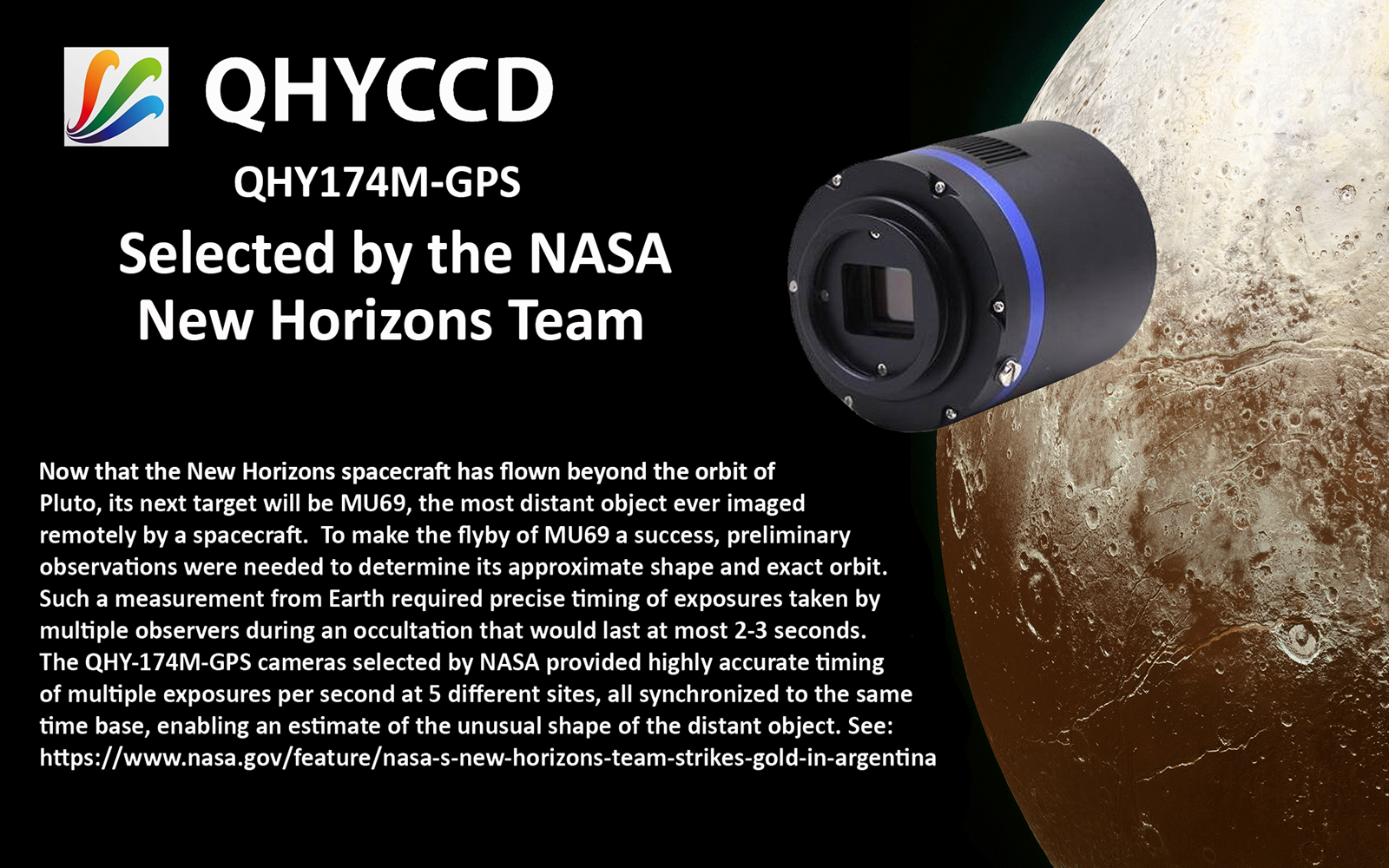 “This effort, spanning six months, three spacecraft, 24 portable ground-based telescopes, and NASA’s SOFIA airborne observatory was the most challenging stellar occultation in the history of astronomy, but we did it!” said Alan Stern, New Horizons principal investigator from SwRI.
http://www.boulder.swri.edu/MU69_occ/july17.html
https://www.nasa.gov/feature/new-horizons-deploys-global-team-for-rare-look-at-next-flyby-target
https://www.nasa.gov/feature/nasa-s-new-horizons-team-strikes-gold-in-argentina
Introduction
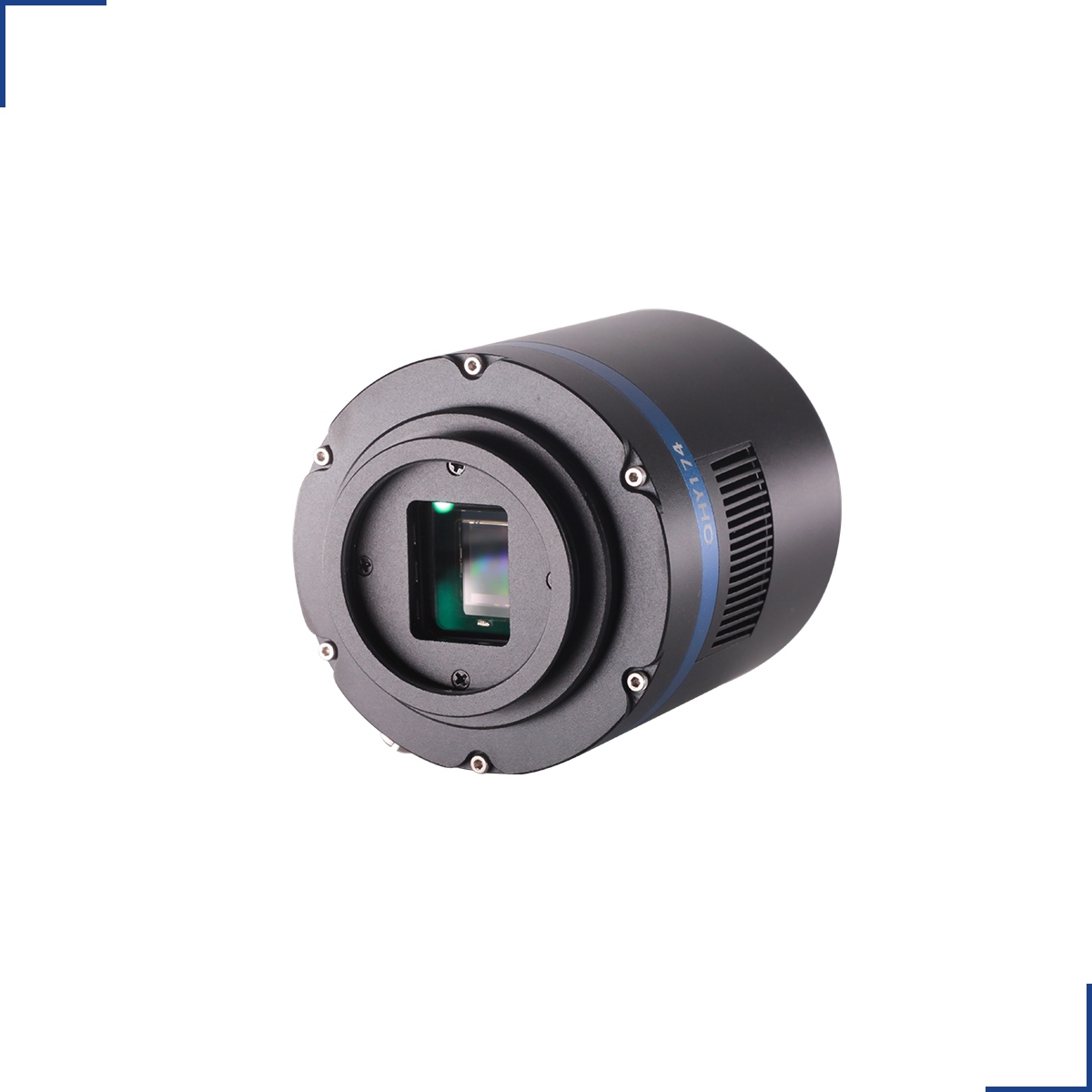
The QHY174GPS camera uses the 1/1.2-inch SONY IMX174 CMOS sensor with global shutter, 5.86um pixels,138FPS@1920*1200, high QE of 78%, and low read noise of 3-5e-. It is useful for imaging occultations, eclipses, meteors, and other scientific imaging requiring a highly precise recording of the time and location of the observation on every frame.
The QHY174GPS has a unique built-in GPS module that can sync with the atomic clock signals received from GPS satellites. The QHY174GPS can record the start and end of exposure time with 1us precision anywhere on earth. The QHY174GPS was selected by the NASA New Horizons Team to successfully captured the MU69 occultation in the Summer of 2017. The QHY174M-GPS has dual stage TE cooling to -45C below ambient with full anti-moisture control including heated optical window and removable desiccant plug for the sensor chamber. The QHY174 also has an anti-amp glow function. It can reduce the IMX174 sensor’s amplifier glow significantly in long exposures.
The QHY174M-GPS records the global shutter exposure starting and ending time with microsecond precision. Two QHY174 cameras, for example, each located anywhere in the world, can have the same time base, accurate to microseconds. In order to guarantee the starting and ending time of the exposure, the QHY174 has a built-in LED pulse calibration circuit precise to 1 microsecond.
Global Shutter
 Unlike the rolling shutter technology used in most CMOS cameras, a global shutter guarantees that the exposure time for the whole image area is uniform, beginning and ending at exactly the same time. This type of shutter is ideal for high precision applications. For high speed moving object and the atmospheric agitation the global shutter can generate undistorted imaging and realizes high picture quality.
Double Working Modes
Master mode: In Master Mode, the camera is free running and the internal 10MHz GPS synced clock will measure and record the shutter’s opening and closing time.
Slave mode: In Slave Mode you can input a target start time and the interval period for two frames. For example: You want three cameras in different locations (maybe thousands of kilometers apart) to start an exposure at 2016.3.9.UTC 14:00:00.000000 and then to continue with exposures at the interval time of 0.100000 sec. After you input these value, all the three cameras will wait until this time and then simultaneously start video recording, e.g.:
2016.3.9 UTC 14:00:00.000033
2016.3.9 UTC 14:00:00.100033
2016.3.9 UTC 14:00:00.200033
2016.3.9 UTC 14:00:00.300033
(The 0.00033 is a global delay of the CMOS shutter).
The time stamp and other GPS information is embedded into the image. The software decodes it in real time and displays the information on left. Since the data is embedded, it will never be lost so long as you keep the original image.
Specifications
| Model | QHY174GPS |
| Image Sensor | Sony IMX174 |
| Sensor Type | Mono Only |
| FSI/BSI | FSI |
| Pixel Size | 5.86μm*5.86μm |
| Effective Pixels | 2 Megapixels |
| Effective Image Area | 11.25mm*7.03mm (1/1.2inch) |
| Effective Pixel Area | 1920*1200 |
| Total Pixel Area | 1920*1200 |
| A/D | 12-bit A/D (output as 16bit and 8bit) |
| Full Well Capacity (1×1, 2×2, 3×3)
|
>32ke- |
| Read Noise | 5.3e-@Gain0
2.8e-@Gain60% 1.6e-@Gain100% |
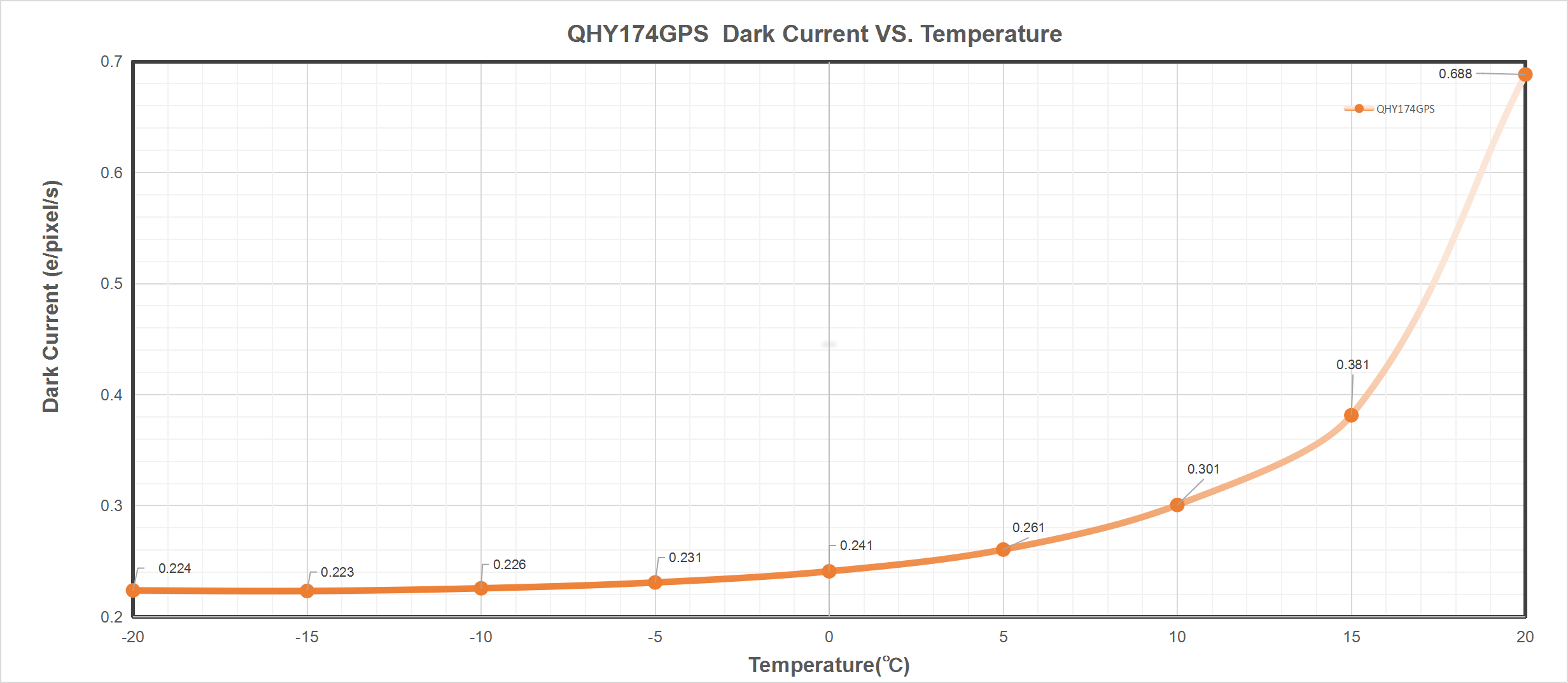
| Dark Current | 0.224e-/pixel/sec @-20℃ |
| Exposure Time Range | 5μs-900sec |
| Shutter Type | Electronic Global Shutter |
| Computer Interface | USB3.0 |
| Filter Wheel Interface
|
4PIN QHYCCD CFW Port |
| Trigger Port | TBD |
| Full Frame Rates | USB3.0:
138FPS@8bit 75.1FPS@16bit |
| ROI Frame Rates
|
USB3.0:
960lines, 160FPS@8bit, 91FPS@16bit 480lines, 305FPS@8bit, 175FPS@16bit |
| Built-in Image Buffer | Build-in 512KB Flash Memory. 100KB user-accessible space for stellar ROI frames for analysis of exoplanet investigation, occultations, atmospheric seeing measurement, focus , optic analysis etc. Support 100*100 image x 10rames 50*50 image x40frames. 25*25 image x160frames 10*10 image * 1000 frames(based on 8bit images) |
| Air Cooling System | Dual Stage TEC cooler:
-40℃ below ambient, test temperature +20℃) |
| Liquid Cooling | |
| Recommended Flow Rates | |
| Anti-Dew Heater | Available |
| Humidity Sensor | |
| Firmware/FPGA remote Upgrade | |
| Optic Window Type | AR+AR High Quality Multi-Layer Anti-Reflection Coating |
| Back Focal Length | 17.5mm |
| Adapters | |
| Weight | 450g |
| Power | 27W/100%
12W/50% 3W/0% |
| Others | GPS Time-Stamp Precision:
1 micro-second of the GPS UTC clock |
Curves
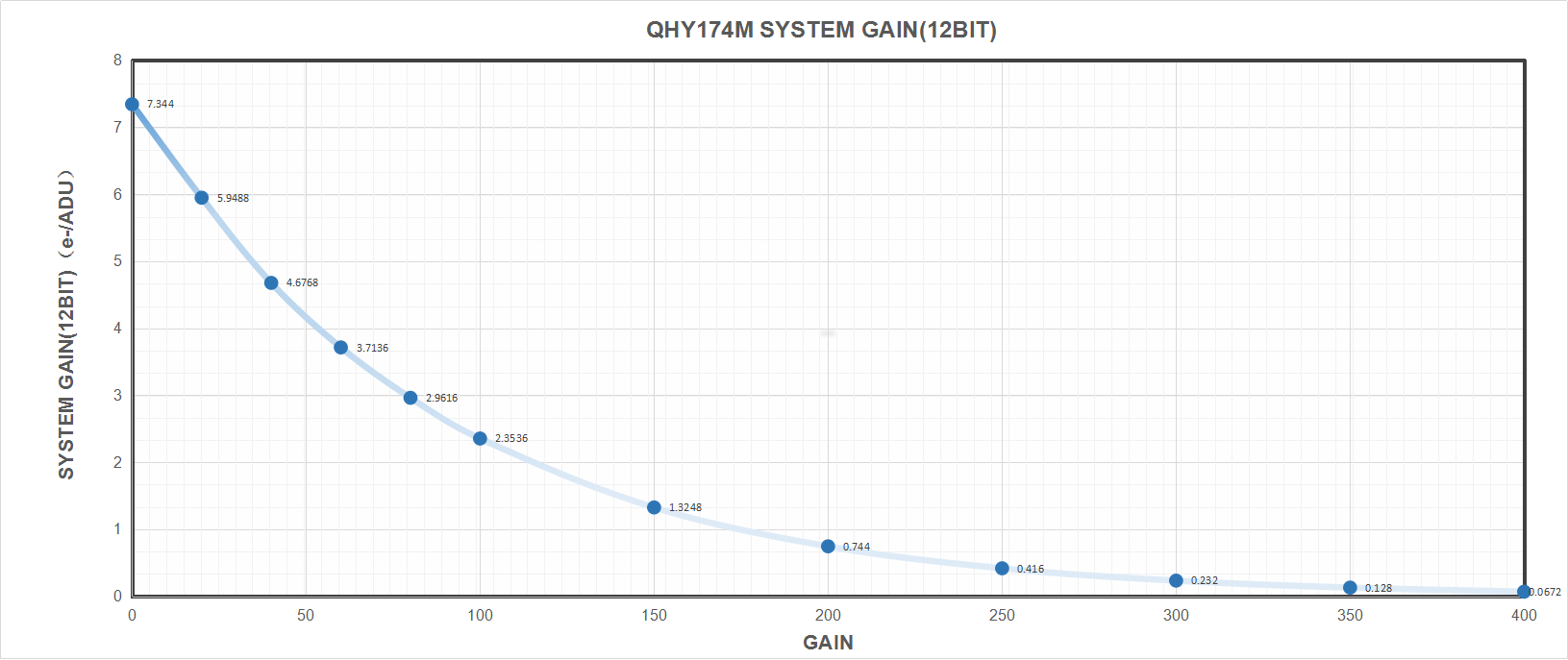
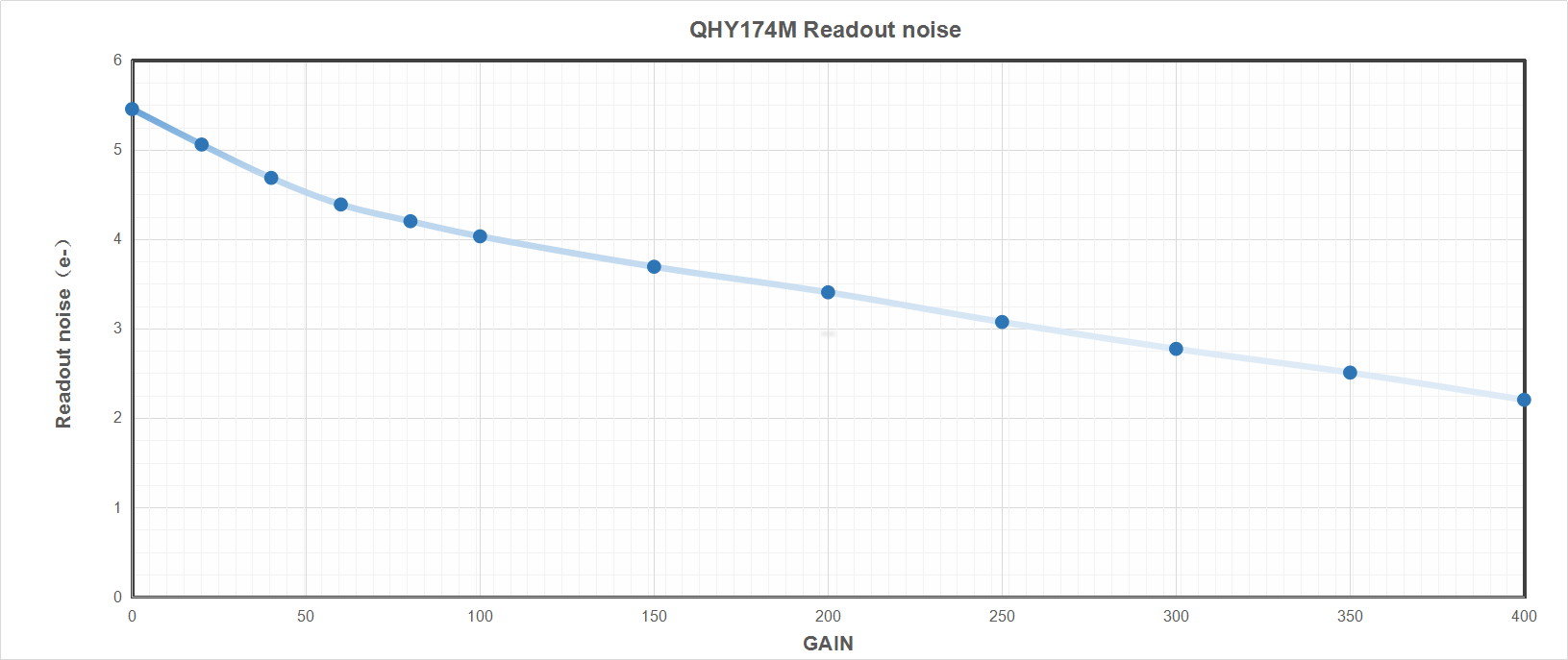
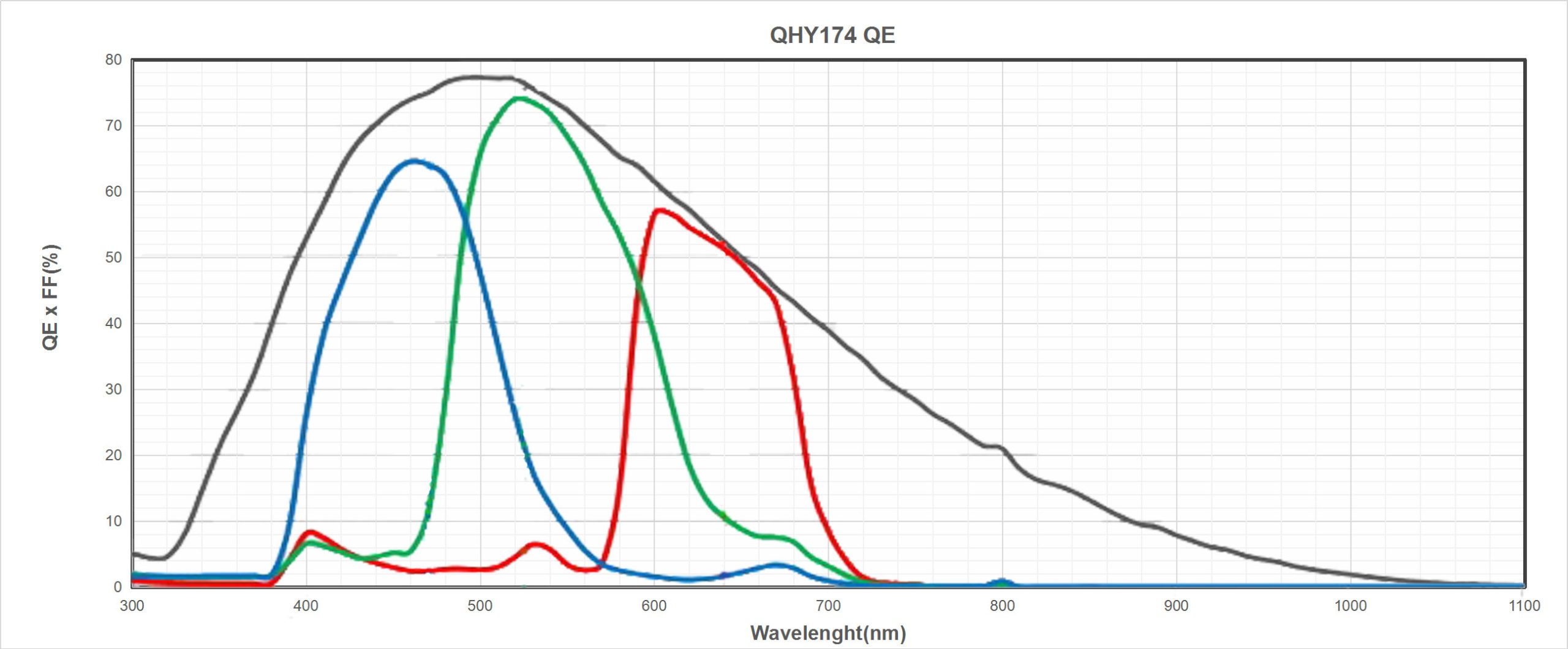

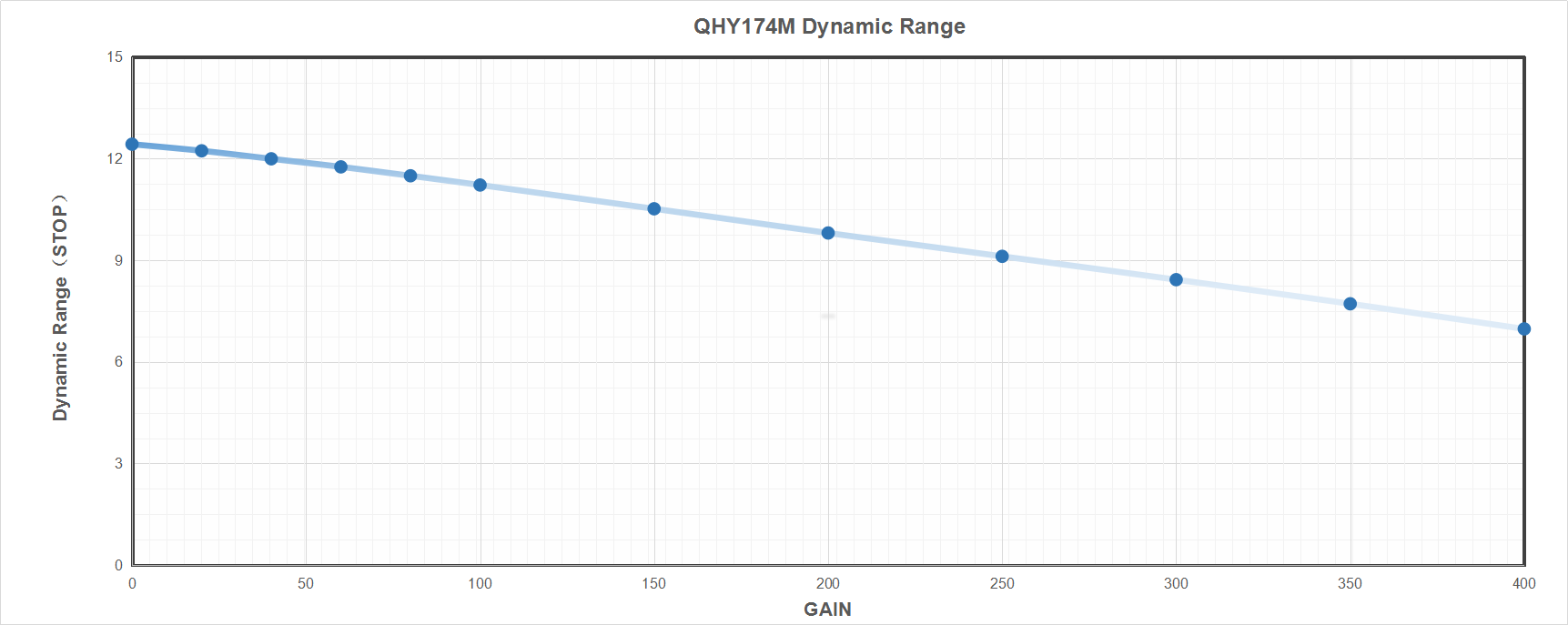
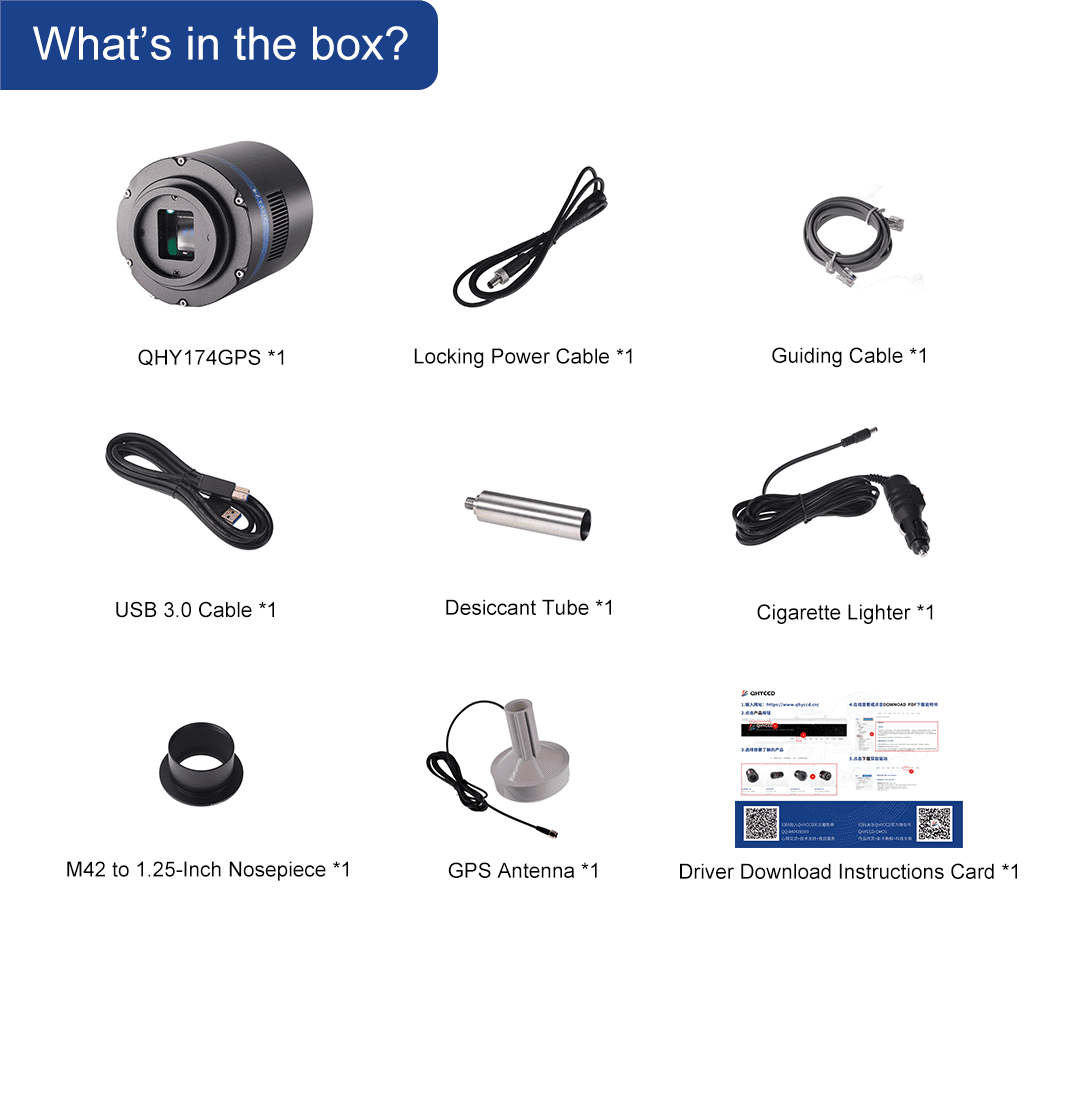
Accessories
Reference Files
Click to Read QHY174M-GPS On-Line Technology Document
Click to Read QHY174GPS Design PDF File

User Guide
Install “All-In-One” Driver&SDK Pack
Before Start: Input Voltage Requirements
The camera requires an input voltage between 11V and 13.8V. If the input voltage is too low the camera will stop functioning or it may reboot when the TEC power percent is high, causing a drain on the power. Therefore, please make sure the input voltage arrived to the camera is adequate. 12V is the best but please note that a 12V cable that is very long or a cable with small conductor wire may exhibit enough resistance to cause a voltage drop between the power supply and the camera. The formular is: V(drop) = I * R (cable). It is advised that a very long 12V power cable not be used. It is better to place the 12V AC adapter closer to the camera.
First connect the 12V power supply, then connect the camera to your computer via the USB3.0 cable. Make sure the camera is plugged in before connecting the camera to the computer, otherwise the camera will not be recognized. When you connect the camera for the first time, the system discovers the new device and looks for drivers for it. You can skip the online search step by clicking “Skip obtaining the driver software from Windows Update” and the computer will automatically find the driver locally and install it. If we take the 5IIISeries driver as an example (shown below), after the driver software is successfully installed, you will see QHY5IIISeries_IO in the device manager.
Please note that the input voltage cannot be lower than 11.5v, otherwise the device will be unable to work normally.
Install "All-In-One" System Pack
All-in-one Pack supports most QHYCCD models only except PoleMaster and several discontinued CCD cameras.
Download Page: https://www.qhyccd.com/download/
Video Tutorial: https://www.youtube.com/embed/mZDxIK0GZRc?start=1
- Since most of the contents of All-in-one package are plug-ins that support third-party software, the third-party capturing software that you want to use must be installed before the All-in-one package. Otherwise the program will report an error.
- ALL-IN-ONE Pack contains:
- System Driver, which is necessary for the camera operation and must be installed.
- WDM Broadcast Driver, which can provide a live signal to Obs and other live software, you can install it if you have such needs like opeing a live show.
- EZCAP_QT , which is developed by QHYCCD and can be used in QHY devices tests, and management of updates. So even if you won’t use EZCAP_QT for capturing, we suggest you install it.
- Ascom driver, which is necessary for the camera used in Ascom (the latest version of Ascom is 6.6).
- The two sorts of Ascom CFW Drivers correspond to two methods of controling the filter wheel: USB control and camera serial control. It is recommended that both drivers should be installed if you have a filter wheel.
- CP210X_VCP is a serial driver. Some computers come with the driver, but the computer without the driver may be failed of controling the filter wheel.
- SDKs for Third-party Software: Just pick and install the corresponding SDK according to the software you want to use. Don’t forget to check whether the software you are using is 32-bit or 64-bit and select the right SDKs.
- SHARPCAP is also included in the pack, you can choose 32-bit or 64-bit to install. This is authorized by SHARPCAP.
- QT LIB is a plug-in to ensure that 64-bit software can exeuate normally on some computers with poor compatibility.
- Difference between Stable version and Beta Version: Beta version is the latest version, which gives priority to support for the latest products (the stable version may not be compatible with those yet), and has some of the latest optimized ,but experimental features. The stable version is older than the beta version but more stable, so it is recommended for beginners who are not using the latest products.
- Don’t let the camera connect to the computer during the All-in-one pack installation process; connect it to the computer after all the installation is complete.
Connect DSO Imaging Software (e.g. NINA)
Before using software, make sure you have connected the cooling camera to the 12V power supply and connected it to the computer with a USB3.0 data cable. If it’s an uncooled camera, 12V power is not needed. We recommend 64-bit Software, like SharpCAP x64 , N.I.N.A x64. etc., especially when you’re using 16bit cameras.
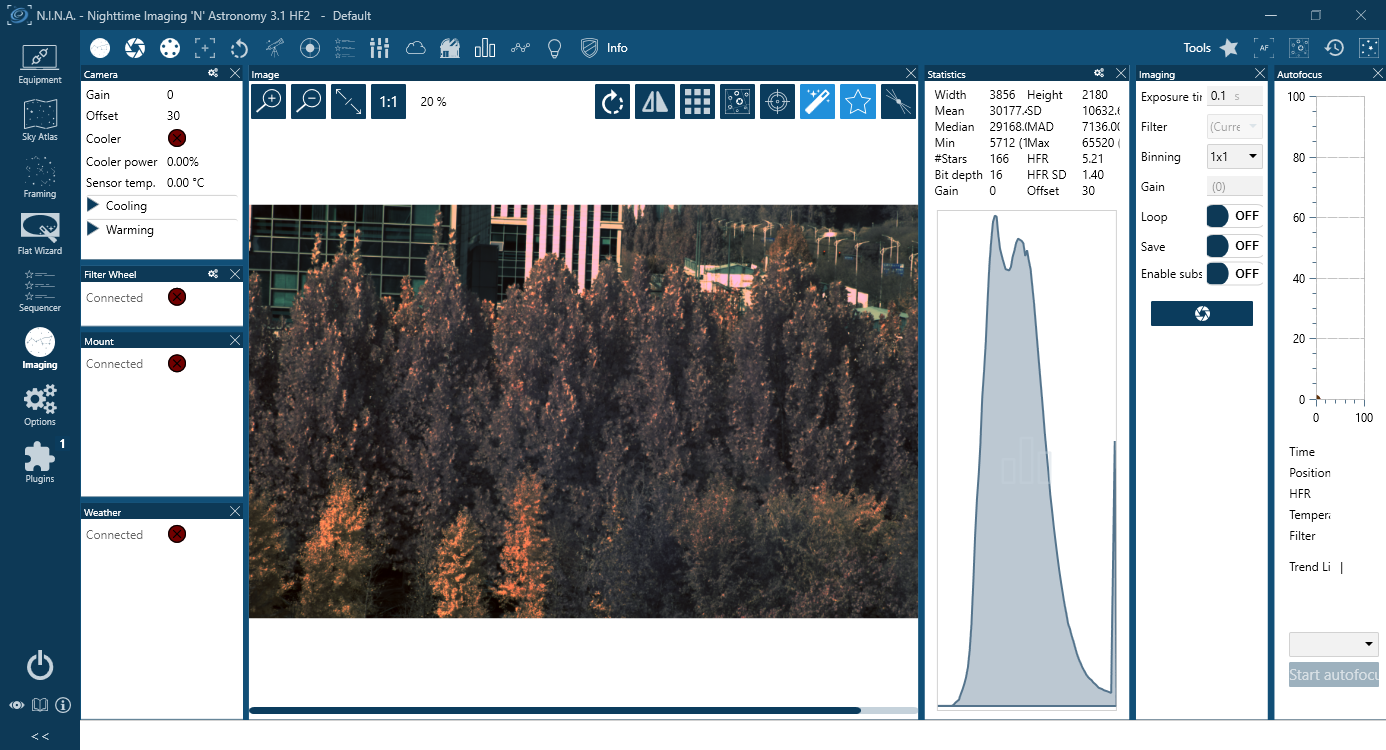
NINA supports direct connection via the QHY plugin as well as connection through the ASCOM driver. The following instructions assume a direct connection using the QHY plugin.
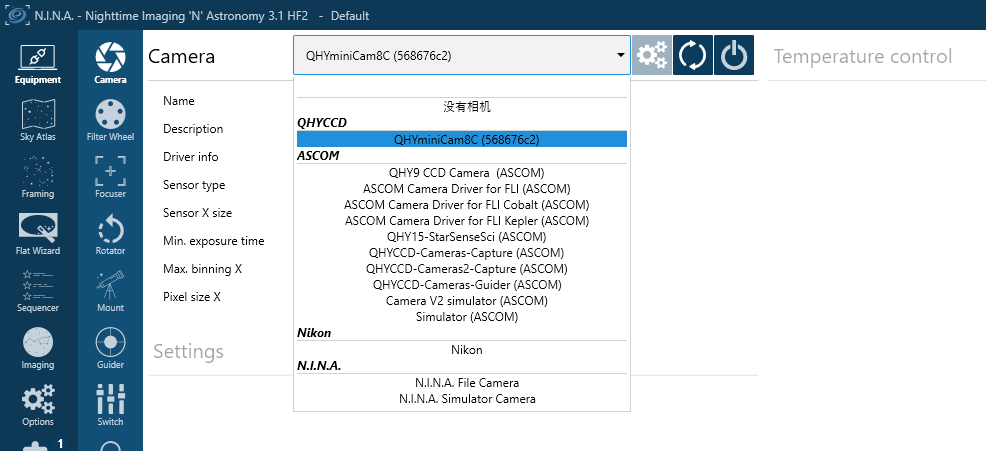
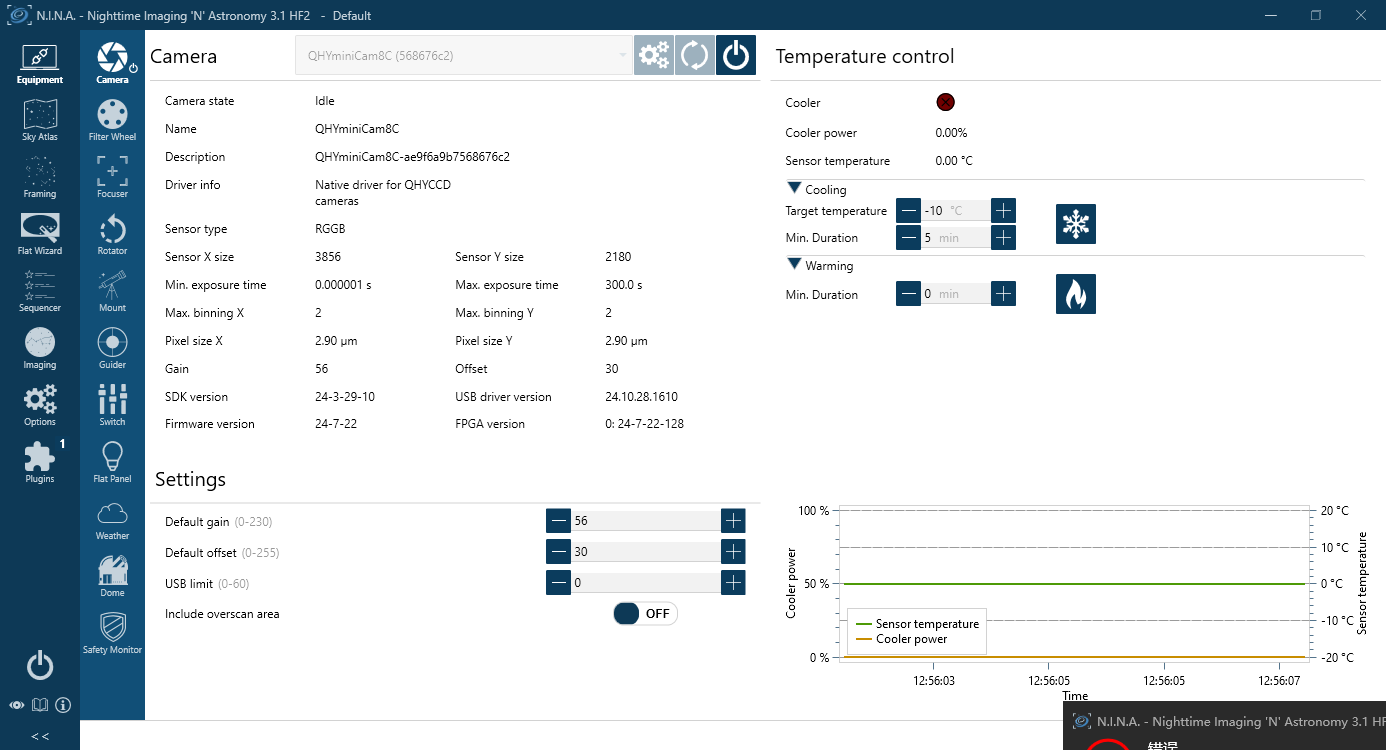
Set the Target temperature.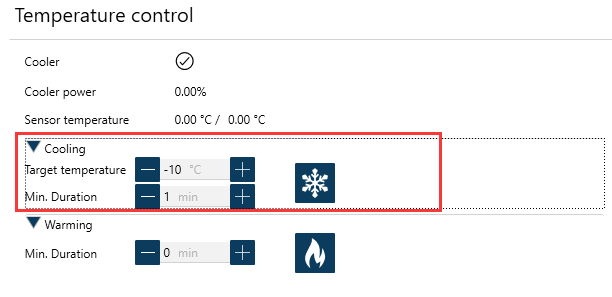
Set exposure time and start the shooting.
Connect Planetary Imaging Software (e.g. SharpCap)
The instructions below are based on SharpCap 3.1
- Launch SharpCap.
Click Camera in the menu bar and select your camera.
If the software and drivers mentioned above have been installed correctly, the image will appear automatically. And the frame rate can also be seen in the lower-left corner of the software window, as shown below.

- Main Interface Functions:
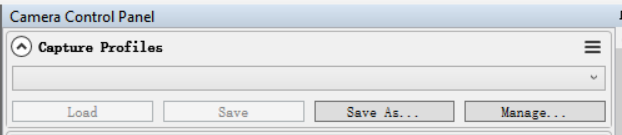
Capture Profiles
Preset management.
After SharpCap is restarted, the default settings are restored. If you frequently use one or more specific parameter configurations, you can adjust the parameters as needed and then click Save to store them as a preset. The preset can be directly recalled the next time you open the software.
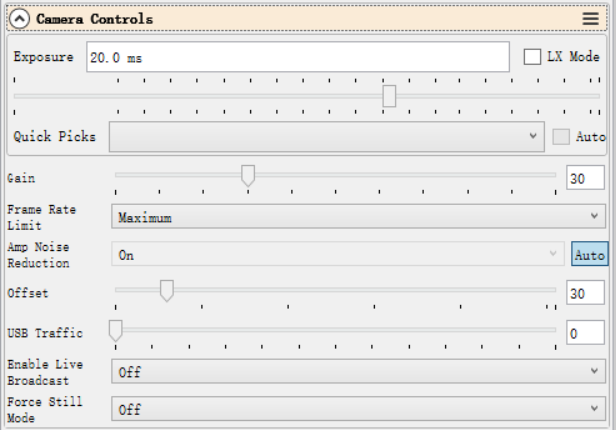
Exposure
Sets the exposure duration. When LX Mode is enabled, the single-frame exposure time can be extended to longer values.
Gain
Equivalent to the ISO setting on a standard digital camera. Higher gain values result in higher sensitivity.
Frame Rate Limit
Limits the maximum frame rate. By default, no limit is applied. Users can set the limit manually if needed.
Offset
Adjusts the bias level. Even when the camera is completely covered, the image may not appear perfectly black. By adjusting the offset value, a more optimal dark frame can be achieved. The Histogram can be used to verify the adjustment.
USB Traffic
Controls the data transfer speed (frame rate). When set to 0, the camera operates at its maximum frame rate.
Enable Broadcast Mode
Enables the broadcast driver. For detailed usage instructions, please refer to the documentation available on the download page.
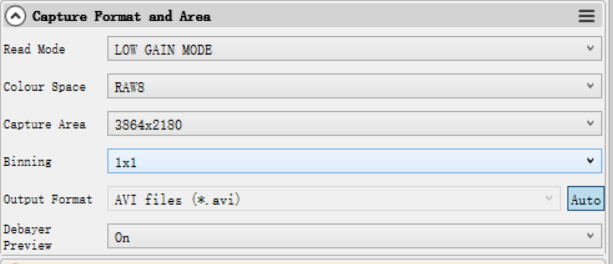
Read Mode
Some camera models support high-gain and low-gain readout modes.
Color Space
Select the output format.
Raw8 / Raw16 are 8-bit or 16-bit formats. Images and videos saved in Raw8 or Raw16 format will be monochrome, even when using a color sensor. Color information must be restored through debayering during post-processing.
RGB24 is a non-RAW format that outputs color images directly, but requires more storage space.
Capture Area
Select the resolution used for image capture.
Binning
Enable pixel binning for image capture.
Output Format
Select the output file format.
Debayer Preview
When this function is enabled, the live preview will be displayed in color even if a RAW format is selected. Please note that the saved images will still be monochrome.
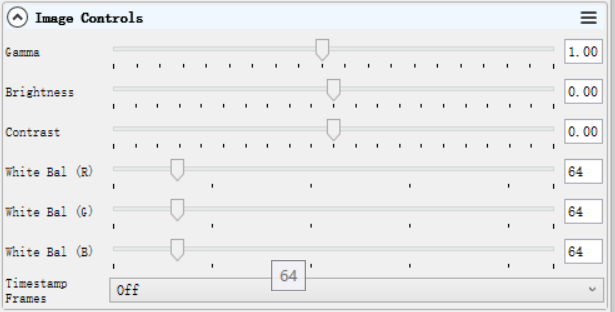
Gamma, Brightness, Contrast
Under normal operating conditions, we recommend leaving these settings unchanged.
White Balance (R/G/B)
This function is used for white balance calibration on color cameras. For detailed calibration instructions, please refer to the corresponding section on the color camera page.
This function is not required for monochrome cameras.
Histogram
The histogram is an important image reference tool. It can be used to check whether the white balance is set correctly, whether the offset value is appropriate, and whether the image is overexposed.
Its operating principle is the same as that of the histogram used in standard DSLR cameras.

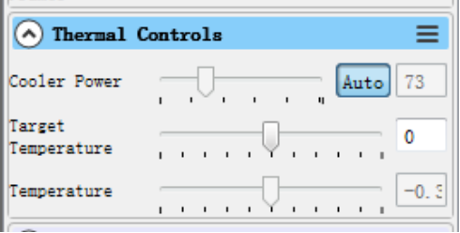
Thermal Controls
After the cooled camera is connected to a 12 V power supply, the temperature control circuit will be activated. You can control the CMOS sensor temperature by adjusting the settings shown below.
There are two main methods for temperature control:
Adjusting the cooler power
Setting a target temperature
If you wish to control the CMOS temperature by setting a target temperature, first click “Auto”, and then use the slider to set the desired target temperature.
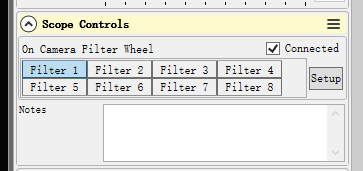
Scope Control: for filter wheel control
Select the corresponding filter wheel slot to control the rotation.
Note: The software must be started after the filter wheel has completed its rotation and returned to the home position; otherwise, the position will not be displayed correctly.
Using Ascom
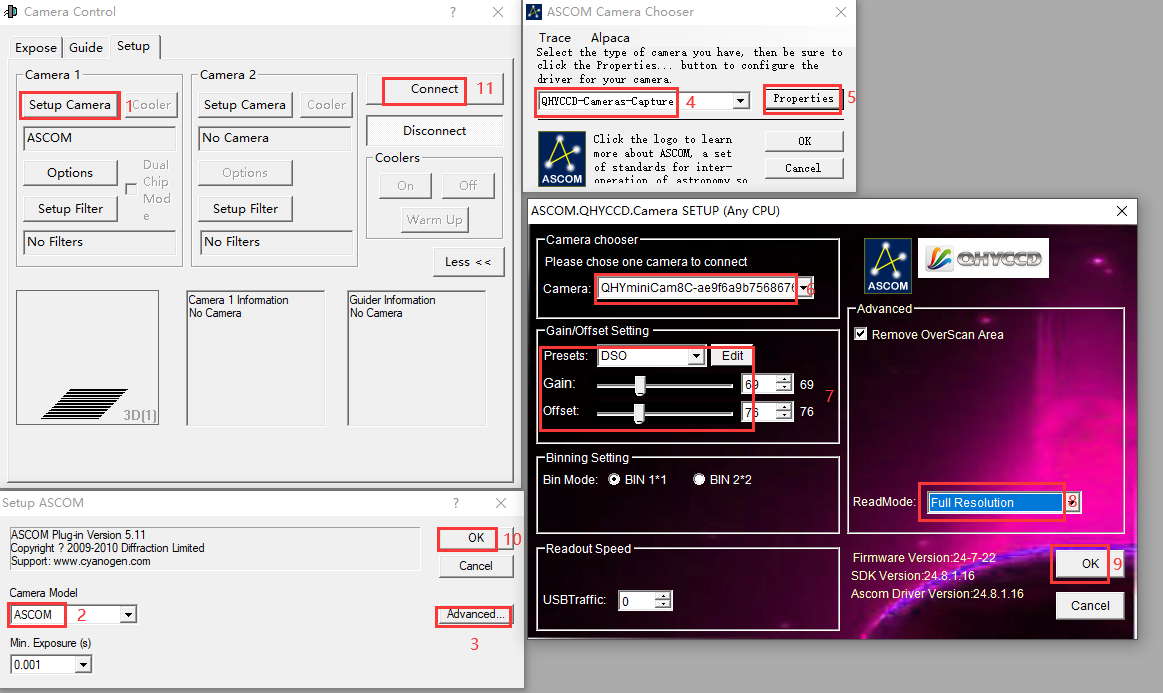
QHY devices can operate with many software applications that support the ASCOM platform. MAXIM DL is used as an example below.
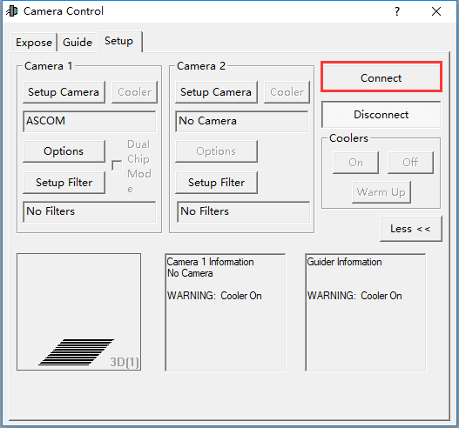
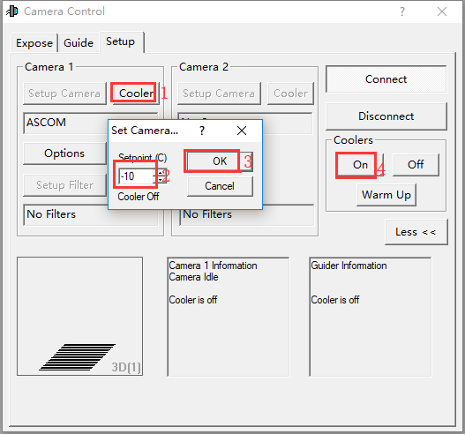
First, make sure that both the ASCOM platform and the QHY ASCOM driver have been successfully installed. Launch MAXIM DL and follow the instructions shown in the figure below to complete the setup.
Click “Connect”
Set the cooling temperature.
Using EZCAP
EZCAP_QT is software developed by QHYCCD. For QHYCCD cameras, it provides basic image capture functions.
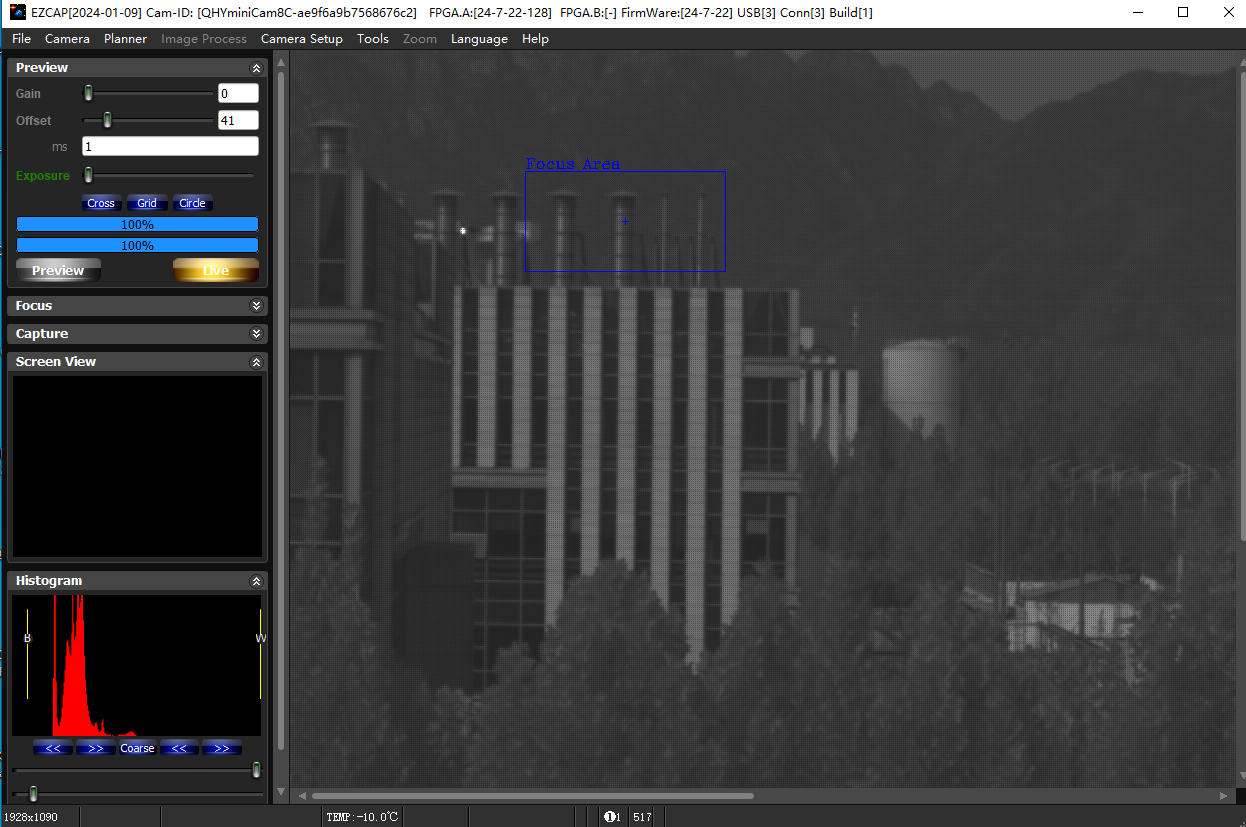
Install the EZCAP_QT software and connect the camera to your computer using a USB 3.0 cable. Launch EZCAP_QT, then click “Connect” under Menu → Camera.
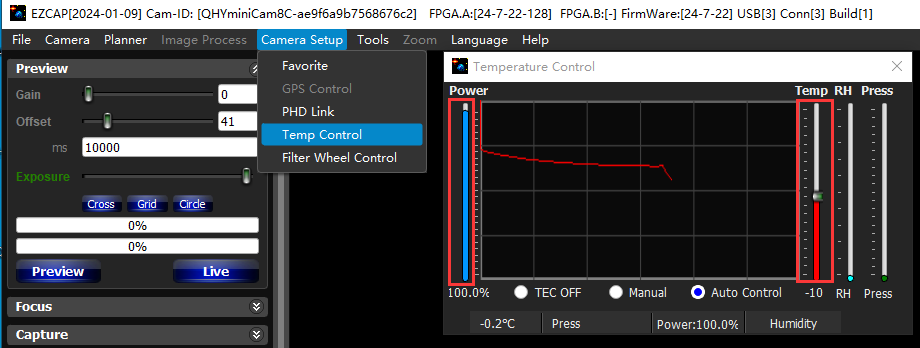
If the camera is successfully connected, the EZCAP_QT title bar will display the camera firmware version and camera ID, as shown in the figure below.

In Camera Setup, click Temp Control to set the CMOS sensor temperature.
You can enable Auto to define a target temperature. For example, here we set the target temperature to –10 °C. The CMOS sensor temperature will quickly drop to the target value, typically within 2–3 minutes.
To disable cooling, select Stop. If you prefer to control the cooling power without setting a target temperature, you can manually set the cooling power as a percentage.
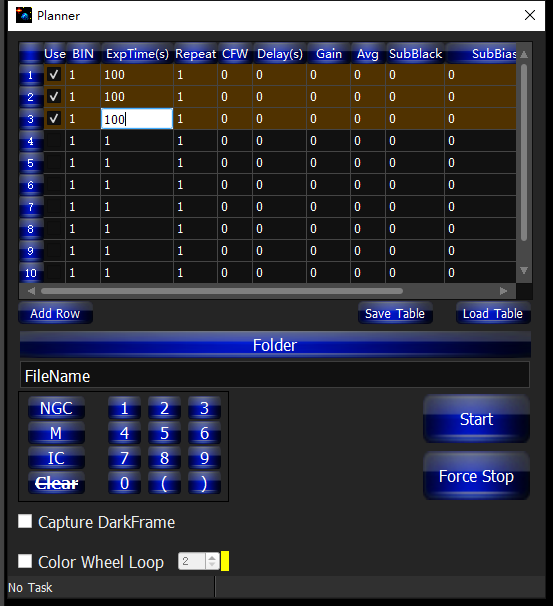
In EZCAP_QT, there is an Image Task Planner for sequence imaging.
Check Use to enable the task.
Set the following parameters:
Bin
ExpTime – exposure time
Repeat – number of frames
CFW – filter wheel position
Gain – gain value for the sequence
Click Folder to set the save path. (It is recommended to avoid special characters in the path and use English letters.)
Click Start to begin the sequence capture, and Force Stop to close the current task.
Camera Maintenance
Drying the camera CMOS chamber
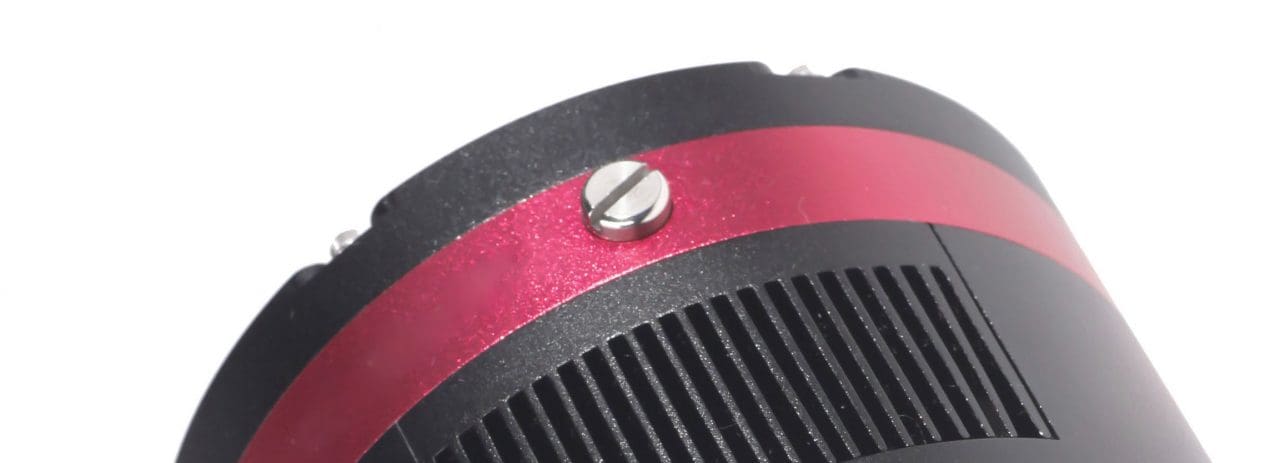
- There are holes in the two sides of the camera near the front plate that is normally plugged by a screw with an o-ring. If there’s moisture in the CMOS chamber that causes fog, you can connect the desiccant tube to this hole for drying. There would better be some cotton inside to prevent the desiccants from entering the CMOS chamber.
 Please note that you may need to prepare desiccants yourself, because for most countries and regions desiccants are prohibited by air transport. Since QHY always deliver your goods by air, sorry that we can’t provide desiccants for you directly.
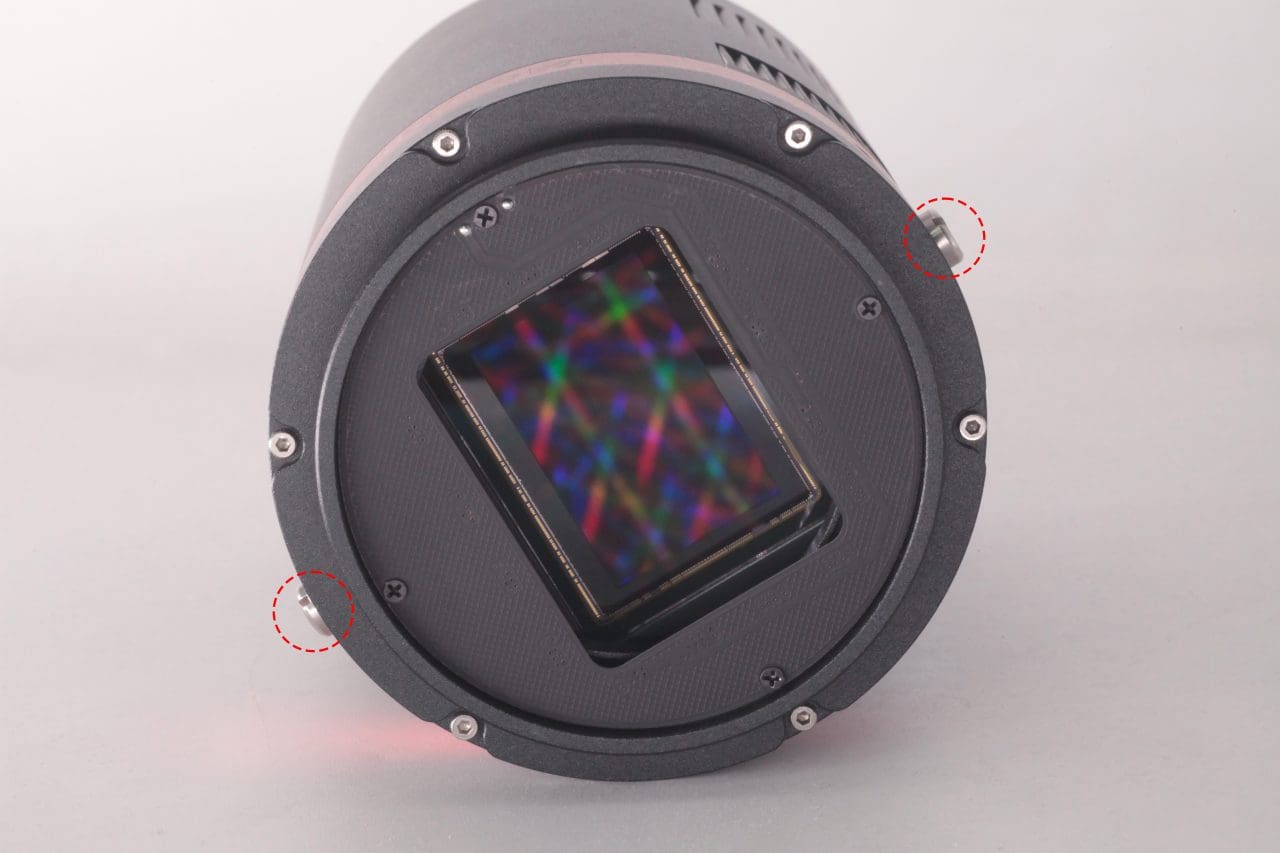
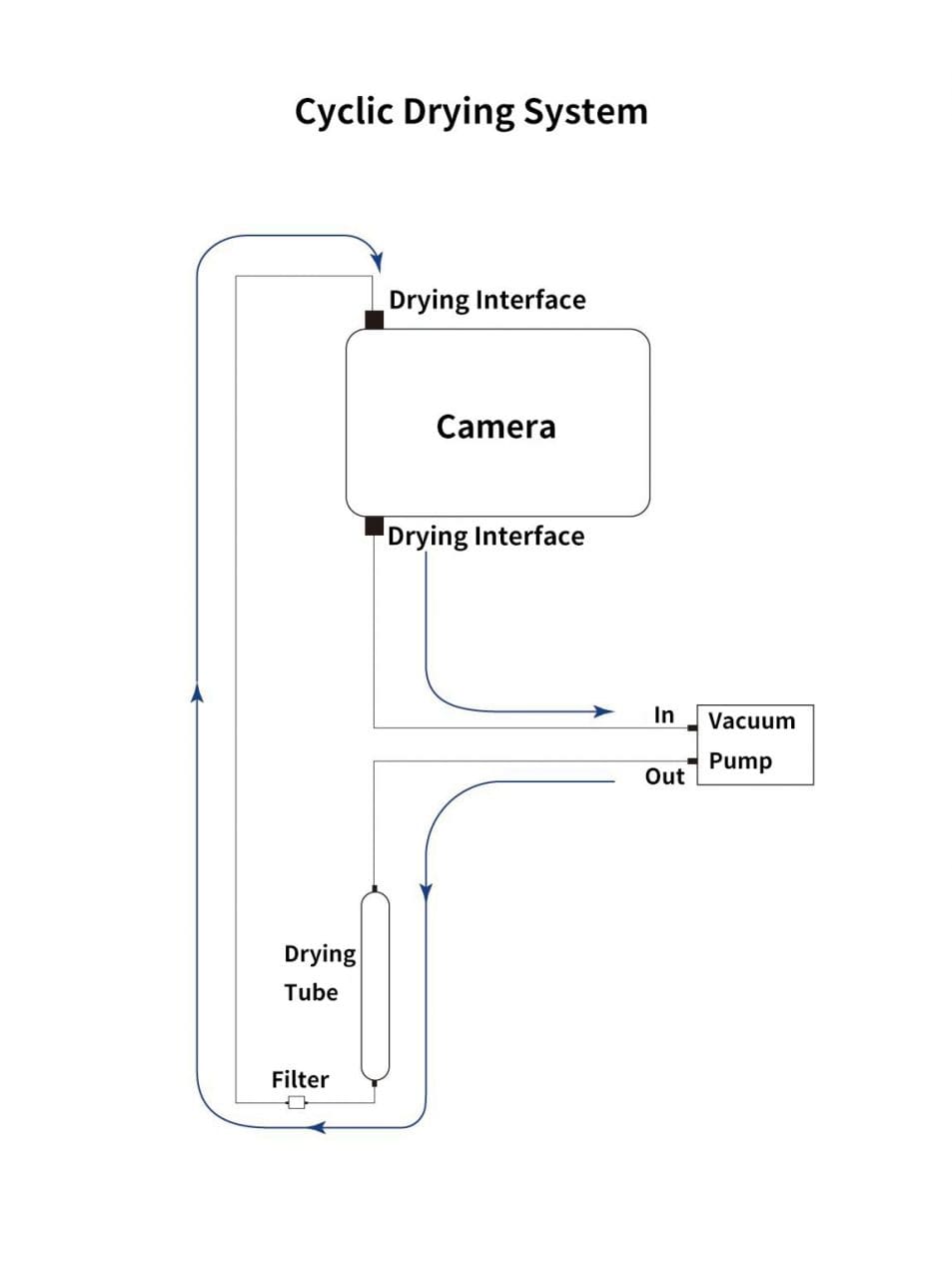
 - Cyclic Drying: The front end of the camera body is equipped with two drying interfaces with M5 threads, which are used in conjunction with drying tubes and circulation pumps for drying treatment inside the sensor chamber. The position of the drying interface is indicated by the red circle in the figure below (take the QHY600 as an example):Under the vacuum pump, the gas inside the sensor chamber is drawn out through one drying interface, enters the drying tube, and then undergoes filtration. It is then reintroduced into the camera through the other drying interface, circulating back and forth for drying.
Note:1.Do not reverse the order of the intake and exhaust ports
2.Before circulating drying, it is necessary to turn off the refrigerator, and then turn on circulating drying after the temperature returns to normal temperature. Only by following this step can the water vapor in the sealed chamber be effectively removed. If the cooler is turned on, the cooler inside the camera will absorb water vapor, causing more water vapor to condense inside the camera instead of being absorbed by the desiccant.
Cleaning the CMOS sensor and optical window
If you find dust on the CMOS sensor, you can first unscrew the front plate of the cam and then clean the CMOS sensor with a cleaning kit for SLR camera sensors. Because the CMOS sensor has an AR (or AR/IR) coating, you need to be careful when cleaning. This coating can scratch easily so you should not use excessive force when cleaning dust from its surface.
Preventing fogging of the CMOS chamber
All QHY cooling cameras have built-in heating plates to prevent fogging. However, If the ambient humidity is very high, the optical window of the CMOS chamber may have condensation issues. Then try the following:
1. Avoid directing the camera towards the ground. The density of cold air is greater than of hot air. If the camera is facing down, cold air will be more accessible to the glass, causing it to cool down and fog.
2. Slightly increase the temperature of the CMOS sensor .
3. Check if the heating plate is normally working. If the heating plate is not working, the glass will be very easy to fog, the temperature of the heating plate can reach 65-70 °C in the environment of 25 °C. If it does not reach this, the heating plate may be damaged. Please contact us for maintenance.
TE Cooler Maintenance
Please avoid thermal shock during use. Thermal shock refers to the internal stress that the TE cooler has to withstand due to the thermal expansion and contraction when the temperature of the TEC suddenly rises or falls. Thermal shock may shorten the life of the TEC or even damage it.
Therefore, when you start using the TEC to adjust the CMOS temperature, you should gradually increase the TEC power rather than turning the TEC to maximum power. If the power of the TEC is high before disconnecting the power supply, you should also gradually reduce the power of the TEC and then disconnect the power supply.
Appendix:Exernal Trigger Mode Manual
Suitable for the following camera with a global shutter.
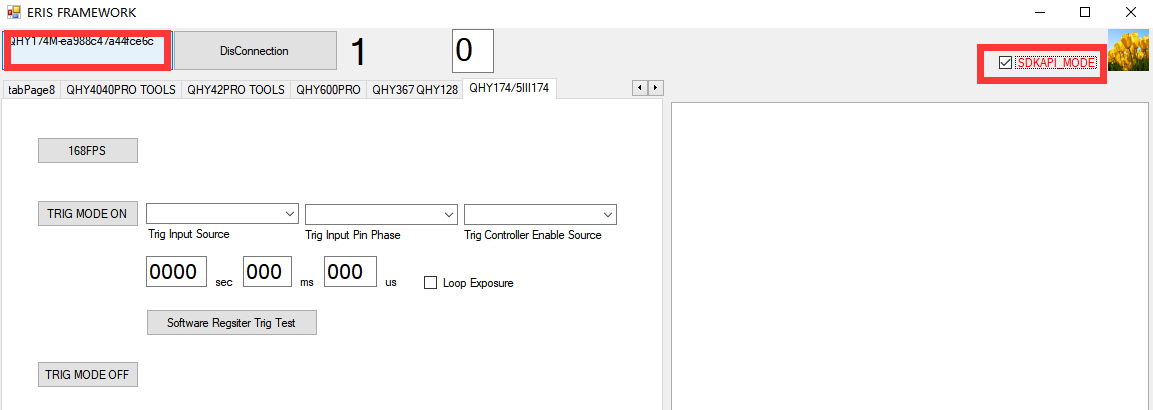
Use Sharpcap software as the capture software. QHYCCD Advnanced tools as the External trigger mode setting software.
1.Run SharpCAP, You will see the live video appearing
2.Run advanced control tools. Check on the “SDKAPI_MODE” Click “Coonect”
Mode 1:Hardware External Trigger. The exposure time is depent on the external pulse width
In the Trig Input Souce trigger input source drop-down selection, select Trig Input Pin Direct. The meaning is to trigger the input source as the external trigger input port of the camera (opto-coupled isolated, RCA gold plug); Select one in Trig Controller Source (the marquee doesn’t make sense for this mode, so choose one)
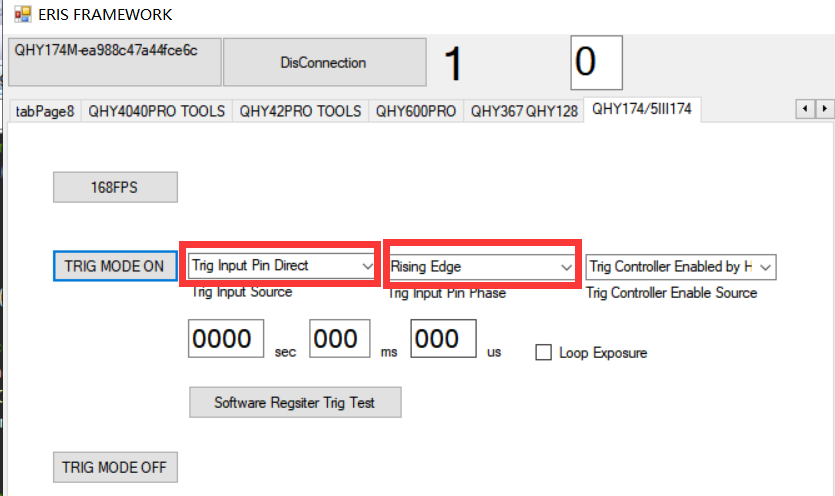
Press the TRIG MODE ON button. You will find that the video image in sharpCAP software stops. The camera has entered a waiting outside trigger state. Trigger the input port via the photoelectric isolation and enter a high level. You’ll find that the image takes a frame, and the longer the duration of the high level, the longer the image will be exposed. In this mode, the exposure time is equal to the duration of the high level.
Mode 2:Out-of-hardware trigger, exposure time set by the software
Press the diagram to set it up. Choose XTRIG CONTROLLER in Trig Input Source, Trig Input Phase to Rise Edge, Trig Controller Controller Enable Source select Trig Controller by Hardware. And enter exposure time, such as 50ms. Then click the TRIG MODE ON button to complete the setting of the mode and the exposure time setting.
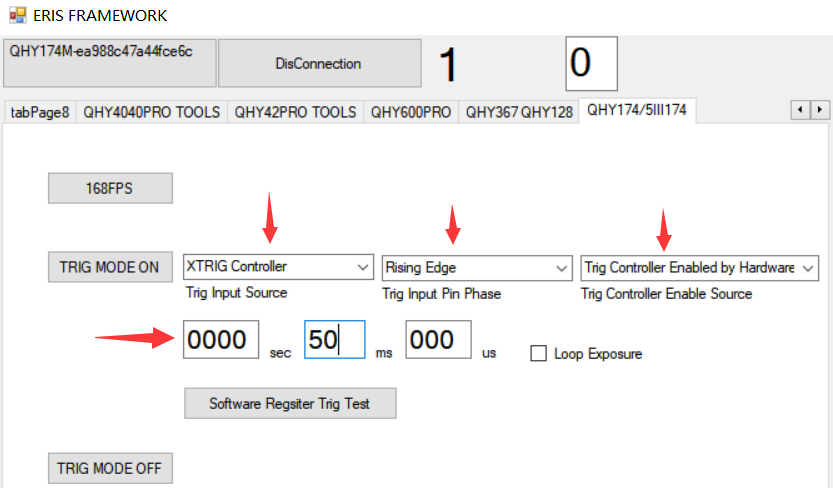
By triggering the input interface outside the photoelectric isolation, a short high level is entered and a frame is captured on the image in SHARPCAP. Note that if the input is consistently high, the camera continues to shoot under the setting of a longer exposure time. To avoid continuous shooting, the high-level time of the input trigger is short, e.g. 1ms
Mode 3: Out-of-software trigger, exposure time is determined by the software command interval
In this mode, the software sends a start exposure instruction through the software, and then the software waits for a delay. Then send an end exposure instruction. A trigger for software control is possible. Its exposure time is equal to the time between the start and end exposure commands. Just follow the settings below. Once set up, click TRIG MODE ON to feed the instruction. Then click on the Software Register Trig Test button to observe the shooting. To modify the exposure time, you only need to modify the value sits in the exposure time box, instead of clicking TRIG MODE ON, just click the RegisterSoftware Trig Test button.
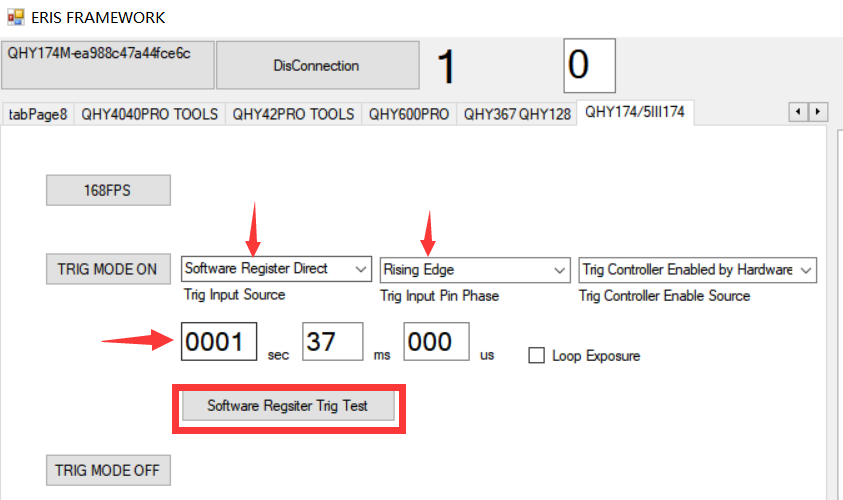
Mode 4:Out-of-software trigger, exposure time set by the software
In Mode 3, there is a problem with a less stable and accurate exposure time. The reason is that the time interval between the two instructions sent by the upper computer is not so precise and will be affected by CPU delay, busyness and other factors. Therefore, mode 4 is also provided. Set the pattern as shown below.
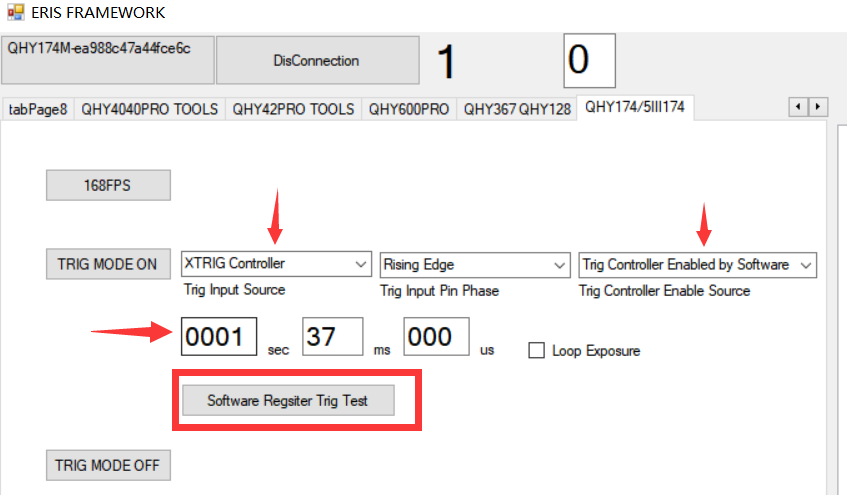
In this mode, exposure time is set by the software and performed by the hardware inside the camera, rather than by the interval between the two commands that the upper machine starts and ends exposure, so the exposure time is accurate and repeatability is very good. The upper machine only needs to issue a start exposure and end exposure instructions. The interval between the two instructions is as short as possible, for example, about 1ms. The camera will be exposed according to the exposure time set by the software, not the command interval.
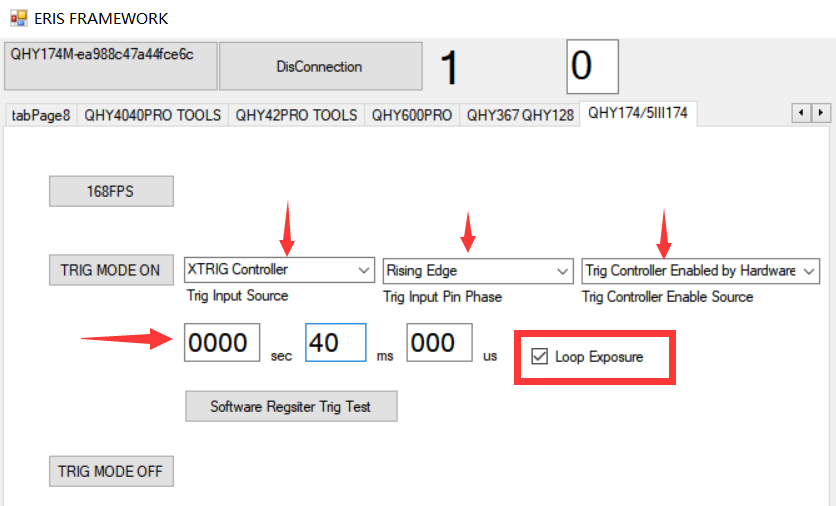
Mode 5: Out-of-hardware trigger, sequence shooting
In this mode, continuous shooting can be achieved by means of external triggering. The camera is waiting until a trigger signal is given, and once a trigger signal is given, the camera starts shooting continuously. Exposure time is set by the software.
Follow the figure below to set it up. Once set up, press the TRIG MODE ON button to keep the camera waiting, and then enter a high-level pulse from the optically isolated trigger input to trigger continuous shooting by triggering continuous shooting by the camera. (It is important to note that QHY174 does not work when the exposure time is short, and the exposure time is longer.) If you want to enter the next wait state, click TRIG MODE ON to restore the camera to the waitstate and wait for the next external trigger pulse to arrive.
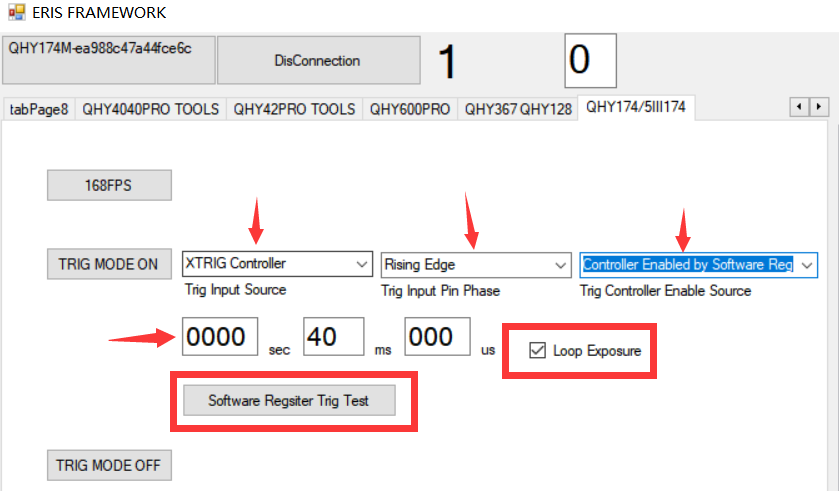
Mode 6: Out-of-software trigger, sequence shooting
Similar to Mode 5, the trigger source is entered from external hardware to software control. After pressing the diagram to set up, click TRIG MODE ON, the camera waits, at this time click on the Software Register Trig Test button, after the start signal, you can see the start of continuous shooting.
Additional instructions:
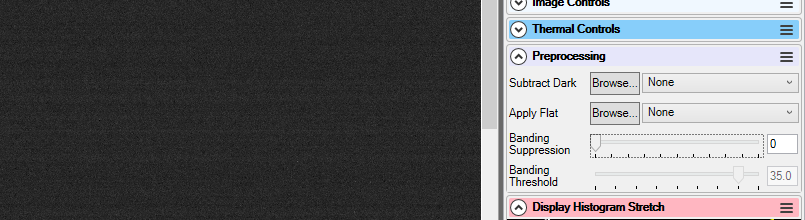
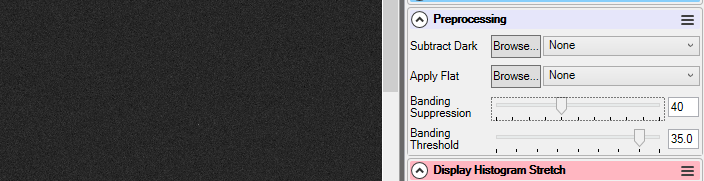
The SHARCAP software has a random horizontal horizontal stripe noise reduction feature in the right menu bar. CMOS of the global shutter, such as 174, horizontal random horizontal stripes are more obvious at high gain, and this column can be adjusted appropriately. Comparing the image below, there is no on and off effect, and the difference can be seen.